
VRChem Industrial Training
VR application supports students training in industrial environments by enabling measurement of equipment, pipelines, and installations, as well as analysis of chemical plant spaces. It allows identification of key equipment, improves spatial orientation, and supports inspection and planning of plant layouts. The system also enables preparation of logistics reports for equipment replacement in chemical installations, enhancing analytical and planning skills in a virtual environment.
APPLICATION SHOWCASE VIDEOS
APP SOURCE FILES
VRChem Industrial Training – Version Alpha
Meta Quest 1, 2, Pro & 3 – Step-by-Step Setup Guide
1. Set Up Your Headset
When using your Meta Quest headset for the first time, sign in with your Meta account and pair the headset with the Meta Horizon mobile app. Assign the device to your account to unlock all available features and services.
2. Update the System Software
Before installing any applications, ensure that your headset is running the latest system software. You can check for updates in Settings → System → Software Update.
3. Enable Developer Mode
To install applications that are not available through the official Meta Store, you must enable Developer Mode. Open the Meta Horizon mobile app, enable Developer Mode for your headset, and then, on the headset, allow USB connections and installation from unknown sources when prompted.
4. Prepare Your Headset for Application Installation
Download and install the free SideQuest application on your computer. SideQuest allows you to install and manage applications on your Meta Quest headset. Use a USB cable that supports both charging and data transfer to connect the headset to your computer.
5. Install the Application
Launch SideQuest and connect your headset to your computer. From the SideQuest interface, select the option to install an APK file, browse to the provided .apk file, and start the installation. Wait until the installation process is completed successfully.
6. Launch the Application
After installation, put on your headset and open the Apps Library. Select Unknown Sources and launch the installed application. Before starting the application: Ensure that your headset is connected to a Wi-Fi network with internet access. Disable the Randomized MAC Address option for the Wi-Fi network you are using. Enter your license key when prompted, or run the application in Demo Mode if you do not have a valid license.
HOW TO USE APP?
In this scenario, you take on the role of an Industrial Chemical Engineer working in a large industrial and chemical complex. At the beginning of the experience, you are placed in an office environment where you receive your assigned task and instructions.
FREE MODE
Before starting the main task, access the menu located in the center of the office and select “Free Mode”. This mode allows you to familiarize yourself with the virtual environment, navigation system, interaction methods, available controls, and the wrist-mounted user interface.
MAIN TASK
When you are ready, return to one of the offices and start the game on the easy level. The task consist in 4 steps:
– Find and navigate to a specific location.
– Insert equipment.
– Measure the equipment
– Return to the office.
This app introduces students to the fundamentals of industrial plant navigation, equipment identification, placement, and measurement in an immersive VR environment.
APP MAIN FEATURES
- Controls Overview
The application provides intuitive interaction methods designed to ensure user comfort and flexibility during the VR experience.
– Hand Interaction & Active Hand
When interacting with an object, the selected hand becomes the active transformation hand. The active hand is used for operations such as object placement, transformation, and measurement. The active hand can be switched at any time by pressing the X button on the controller.
– User Interface (UI) Controls
All application functions are accessible through the VR interface.To interact point at an element and press the Select button. When interacting with an object using a specific hand, that hand automatically becomes the active hand for further operations (e.g., placing objects or performing measurements).
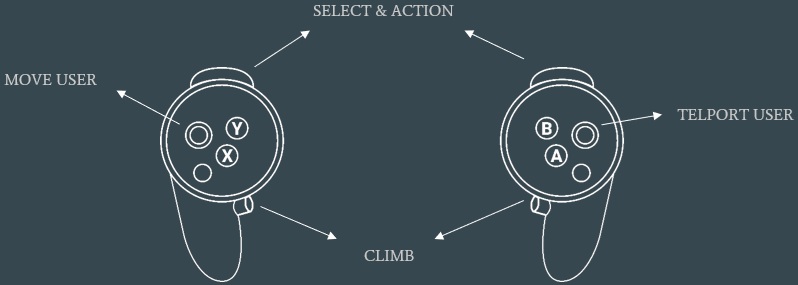
– World Navigation Controls
Teleportation: Use the Right Analog Stick (forward position) to teleport short distances.
Camera Rotation: Move the Right Analog Stick left or right to rotate the view.
Switch Active Hand: Press the X button on either controller.
Use Ladder: Point at the ladder and press the Grab button to climb.
– Object Transformation Modes
Objects can be positioned, rotated, and scaled using two available interaction methods:
– Two-Hand Transformation: use both hands to directly rotate and scale objects through natural VR gestures.
– Ground-Based Transformation: point at the ground to display the transformation gizmo; use the gizmo controls to rotate and scale the object. Gizmo controls in Meta Quest VR apps let you move, rotate, and scale objects using your controllers or hands. You point your controller laser at the gizmo, press and hold the trigger to transform, or click to select a specific axis.
- Starting Office
There are 5 starting office/locations across the map. Upon opening the game, the Player automatically starts inside the first Starting Office. The main menu is located at each starting office.
- Main Menu
The main menu is available in each starting house and provides access to the key application functions. Users can select one of the available modes: Play, Free Mode, or Editor. The menu also includes additional options such as Credits, Controls, and Exit the Application.
- Heads-Up Display (HUD) in application – User Interface Panel
Located on the player’s left wrist, the HUD provides quick access to application functions. It can be switched between the wrist-mounted position and a floating table panel placed in front of the user for greater comfort and accessibility. The main interface provides quick access to essential application functions:
- Map / Teleportation – navigation and movement within the virtual environment.
- Measurement Tool – measuring objects, equipment, and installations
- Settings – application configuration and user preferences
- Moving / Teleportation
Moving around in VR mode relies primarily on teleportation or physical room-scale walking. Teleportation prevents motion sickness and helps navigate large spaces, while physical movement is ideal for inspecting small details within your play area. The teleportation function allows users to move quickly and comfortably within the virtual industrial environment without continuous walking or manual navigation. You are going to be using the Controllers to navigate and interact with objects.
Look around: Move your head physically to look around you in VR or move the joystick or the track pad left and right.
Movement: Physically moving around will move you in VR or move the joystick.
Teleporting: Hold the joystick or the trackpad on your controller then aim towards a location on the ground then release to teleport there.
- Map
The map allows users to quickly navigate through the virtual environment and teleport directly to the Starting Office. It displays the player’s current location depending on the selected Map Visibility Mode. During tasks, the map provides additional guidance by highlighting the required task location.
- Measurement Tool
The measurement tool provides two operating modes for analyzing objects and installations within the virtual environment:
– Free Mode
Create, edit, and delete measurement lines
Perform free-form measurements between selected points
– Box Mode
Create and delete measurement boxes
Move and rotate measurement objects
Measure dimensions along three axes (X, Y, and Z)
- Play Mode
The Play Mode allows users to configure the training scenario before starting the task. Users can customize the difficulty level and select specific environment and task parameters:
– Difficulty Level – choose or customize the challenge level
– Day State – define environmental conditions (e.g., day/night settings)
– Map Tracker – enable or disable navigation assistance
– Task Distance – determine the distance between the starting point and the assigned task
– Equipment Type – select the type of equipment involved in the task
After configuration, a task is randomly assigned, and the immersive training session begins.
- Level Tasks & Scoring System
The training scenario consists of a sequence of interactive tasks designed to develop students’ spatial orientation, equipment recognition, and measurement skills.
– Navigate to the Equipment Location
The user must reach the location of the assigned equipment. Scoring criteria: completion time, weather conditions, and use of the navigation tracker.
– Identify the Correct Equipment
The user selects the equipment corresponding to the assigned task.
Scoring criteria: completion time, correct equipment selection, and accuracy of object positioning. The user can retry if an incorrect object is selected.
– Position and Scale the Equipment
The user adjusts the equipment’s position, rotation, and scale based on visual estimation. Scoring criteria: completion time and accuracy compared with the expected dimensions.
– Measure the Equipment
The user performs measurements of the selected object. Scoring criteria: completion time and measurement accuracy.
– Return to the Starting Base
The user navigates back to the assigned starting location. Scoring criteria: completion time, weather conditions, and use of the navigation tracker. Teleportation does not provide additional points. The user can retry if an incorrect base location is selected.