
VRChem P&ID Trainer
VR application supports students in developing the P&ID diagram reading skills and understanding of process system logic through interactive training in simulated chemical installations. The system enables procedural tasks based on P&ID diagrams, while integrated web-based supervision and evaluation tools support progress monitoring and practical learning in a safe virtual environment. It provides a realistic and repeatable learning experience, enhancing practical competencies without the limitations of physical laboratory access.
APPLICATION SHOWCASE VIDEOS
APP SOURCE FILES
You can access the application by completing the form on the website: https://voxellab.pl/MetaApps/app.php?slug=vrchem-scenario-2
You can vew the app in the Meta Store: https://www.meta.com/pl-pl/experiences/vrchem-scenario-2/9910988922318388/?require_login=true&utm_source=developer.oculus.com&utm_medium=oculusredirect
TASK 1; VRchem 1 Decision matrix; JSON file
TASK 2; VRchem 2 Decision matrix; JSON file
TASK 3; VRchem 3 Decision matrix; JSON file
TASK 4; VRchem 4 Decision matrix; JSON file
HOW TO USE APP?
- Mentor Panel
Access to the Mentor Panel is by logging in to the website: https://vrchem.info.p.lodz.pl/vrchem2/panel_en.php
The Mentor Panel allows instructors to prepare, manage, and supervise VR training sessions from a web browser. Start on you VR google app and launch Task by selecting an existing training scenario. Use the Mentor Panel to monitor participants in real time. You can follow their progress, check the current state of the installation, and identify incorrect actions during the exercise.
APP MAIN FEATURES
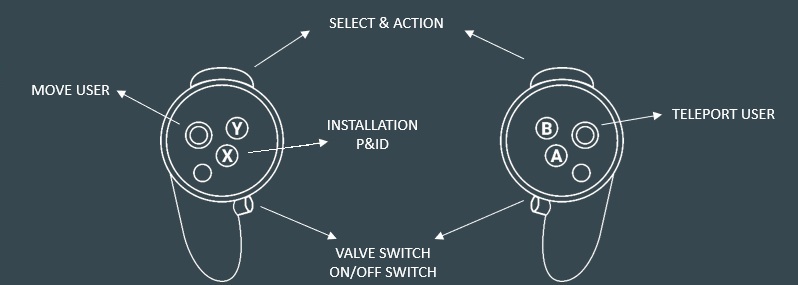
- Controls Overview, Moving, Teleportation
The application provides intuitive interaction methods designed to ensure user comfort and flexibility during the VR experience.
– Hand Interaction & Active Hand
When interacting with an object, the selected hand becomes the active transformation hand. The active hand is used for operations.
– User Interface (UI) Controls
All application functions are accessible through the VR interface.To interact point at an element and press the Select button. When interacting with an object using a specific hand, that hand automatically becomes the active hand for further operations.
– World Navigation Controls
Teleportation: Use the Right Analog Stick (forward position) to teleport short distances.
Camera Rotation: Move the Right Analog Stick left or right to rotate the view.
- Mentor Panel
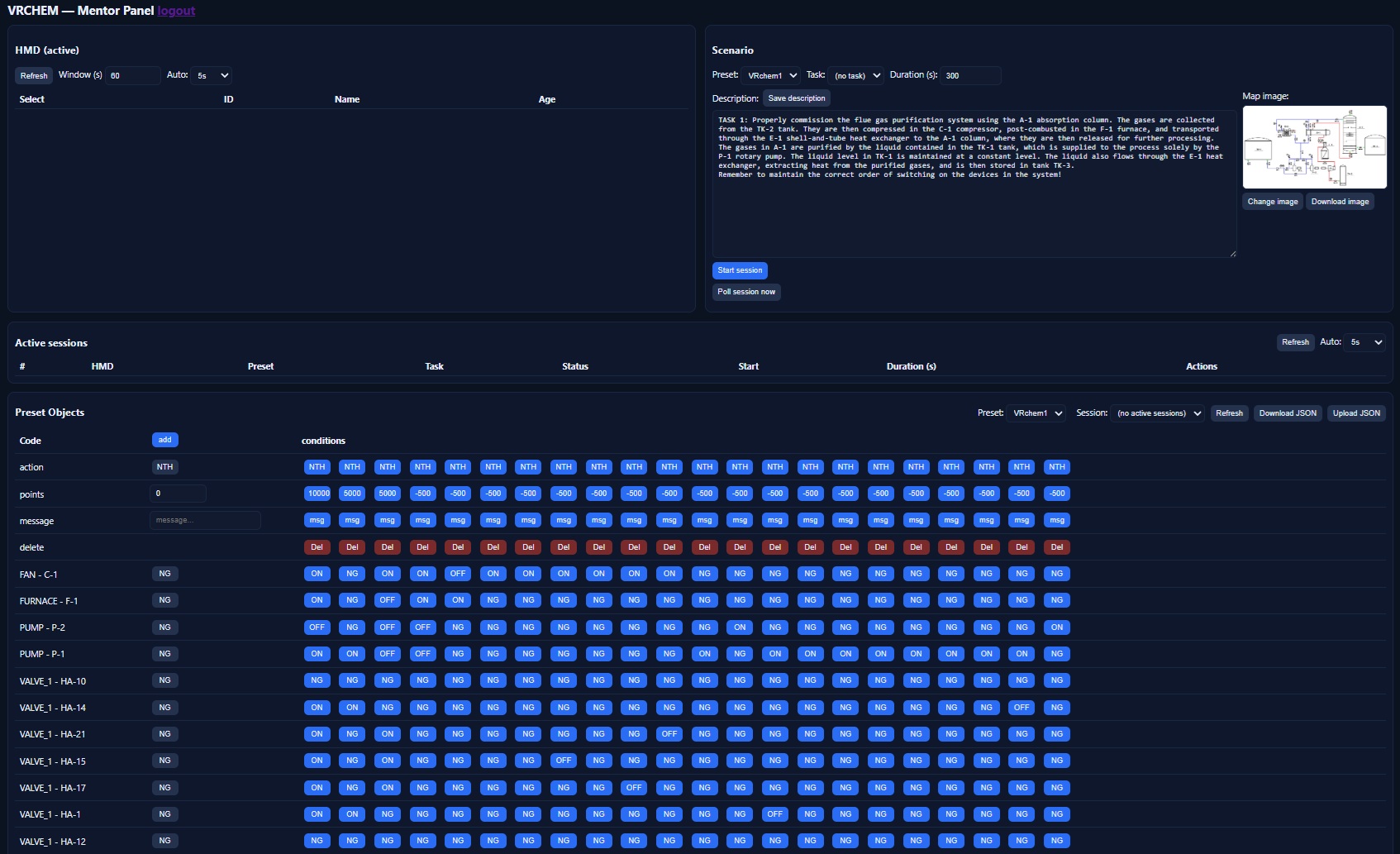
The Mentor Panel is a web-based tool designed to support instructors in preparing, managing, monitoring, and evaluating training activities carried out in a VR environment. Integrated with the VR application and a visual 3D installation editor, it provides a comprehensive environment for conducting immersive chemical engineering training. The Mentor Panel enables instructors to supervise multiple users simultaneously, monitor their progress in real time, and identify incorrect actions during task execution. The system provides access to information about the current scenario, user activities, installation states, and evaluation results.
Key Features:
– Multi-user monitoring – overview of active VR sessions and participants’ progress in real time.
– Task supervision – monitoring user actions and verifying whether procedures are performed correctly.
– Rule-based evaluation – automatic assessment of user actions based on predefined decision rules, allowing incorrect operations to be identified during the exercise.
– Event history and activity tracking – access to records of user actions, installation state changes, and training results.
– Training scenario preparation – configuration of industrial environments and training scenarios to be used in the VR application.
– Installation reuse – existing configurations can be modified and reused as templates for new training scenarios.
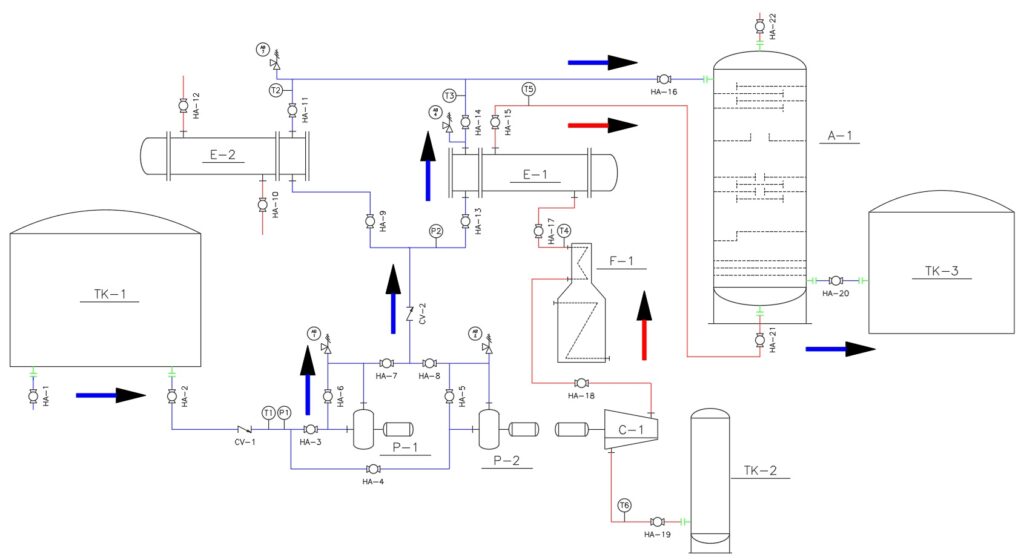
- Installation P&ID
When performing a task related to the correct start-up of the installation, the user has access to a preview of the installation’s P&ID diagram by pressing the X button on the left controller. The diagram also indicates the correct flow of media in the installation with arrows.
- Valve Switch; ON/OFF Switch
To correctly configure and start the installation, the user must set the logical state of the valves and switches according to the requirements of the current task. Each element must be switched to the appropriate state to establish the correct operating conditions and safely start the installation. Changing the logical state of the selected element is done by pressing the GRIP button on the controller.
- Message Box and Feedback
During the training session, the application displays contextual messages in a dedicated information window, providing users with immediate feedback on their actions. Messages inform participants about the current state of the installation and actions performed, including:
– errors related to installation components or incorrect operations,
– information about correctly or incorrectly completed tasks,
– the number of points earned during the exercise,
– notifications about required actions or the next steps to be completed,
– important information related to the current training scenario.
This real-time feedback helps users understand their mistakes, follow the required procedure, and monitor their progress throughout the exercise.