
VRChem Plant Explorer
VR application enables students to explore industrial facilities in immersive virtual environments created from models imported from different engineering software. The system provides interactive tools for measurements, annotations, and visualization under various environmental conditions, such as different lighting, fog, and night mode. Students can identify design errors, inspect the scale and arrangement of chemical engineering equipment, and verify industrial plant designs in a realistic 3D environment, supporting a deeper understanding of engineering projects and installation layouts.
APPLICATION SHOWCASE VIDEOS
VRChem Plant Explorer – alpha version
VRChem Plant Explorer – version 2.2 OPT DELL
VRChem Plant Explorer – version 3.7 WCR
VRChem Plant Explorer – version 4.0
APP SOURCE FILES
Here you can download different versions of VRChem Plant Explorer SimLab Scene files (.zim):
VRChem Plant Explorer – Version 1.7
This version of the application demonstrates the limitations and imperfections that may occur in 3D models generated using different software environments. It highlights how inconsistencies, modelling inaccuracies, and insufficient optimization of imported models can affect the quality, performance, and usability of VR applications.
VRChem Plant Explorer – Version 2.2
This is the next version of the application that was released in April 2026 and was tested by students and teachers. This version has already been improved, many bugs have been removed, its graphics have been optimized and many new elements have been added.
VRChem Plant Explorer – Version 3.7
This version of the application incorporates corrections resulting from comments from students and academic teachers that were posted after testing in the first quarter of 2026. The application has completely changed graphics and many improvements have been added to allow for better immersion in the VR environment.
VRChem Plant Explorer – Version 4.0
This version of the app includes additional information and guidance on the tasks users are required to complete. Task descriptions have been integrated directly into the app to provide clearer instructions and help users understand the objectives and actions to be carried out during a VR session. In addition, further improvements and fixes have been made to the app.
HOW TO USE APP?
- Create account to Get Free SimLab VR Studio in: https://www.simlab-soft.com/account/login
- Transfer APP SOURCE FILES into Oculus Quest Google.
You can easily transfer files and run it on Oculus Quest using SimLab Soft technology. Follow steps to transfer any 3D file you have to your Oculus Quest Google:
https://simlab-soft.com/help/books/cadvr-to-quest/page/transfer-your-3dcad-into-oculus-quest
- Go to your Oculus Quest device.
Now the VR scene is uploaded and synced on your SimLab account, all you have to do is to open your account on the Oculus Quest and you will be able to access the VR Experience.
– Download SimLab VR Viewer for Oculus Quest.
– Open the app, then sign in to your SimLab account.
– You will find the VR Experience under My Models tab.
VR TASKS – INDUSTRIAL FACILITY EXPLORATION
- Objective
The objective of these tasks is to explore a virtual industrial facility and become familiar with the main interaction and visualization capabilities of the VR application. Throughout the tasks, you will inspect industrial equipment and installations, identify potential design and installation errors, perform measurements, mark selected elements, and modify the virtual environment by adding new objects. These activities demonstrate how Virtual Reality can support the teaching of industrial chemistry and chemical engineering by providing an immersive and interactive environment for analysing complex industrial installations.
- TASK 1 – Explore the Industrial Facility and Identify Installation Components
Explore areas of the virtual industrial facility. Move around the installation and observe:
– process equipment,
– pipelines,
– valves,
– tanks,
– pumps and other apparatus,
– structural elements,
– the spatial arrangement of the installation.
After the activity, please list the different types of elements and provide an approximate number of each element that you observed.
- TASK 2 – Open and Explore the Application Menu
Press the A button on either the left or right VR controller to open the application panel. Explore the available functions:
– Locomotion – select the available movement mode.
– Day/Night – change the lighting conditions.
– Fog – activate or deactivate fog.
– Sketch – draw and mark selected elements of the installation.
– Measurement – measure distances and dimensions.
– Catalogue – access the catalogue of available objects.
Try the different visualization options and observe how they affect the virtual environment.
- TASK 3 – Inspect the Installations for Errors
Carefully inspect the industrial installation and look for potential design or installation problems. Try to identify:
– incorrectly positioned fasteners or supports,
– intersecting pipelines and tanks,
– pipelines passing through structural elements,
– pipelines intersecting with floors,
– valves located in inappropriate or inaccessible positions,
– equipment incorrectly positioned in relation to other components,
– other visible spatial conflicts.
Move around the installation and inspect suspicious areas from different viewpoints. Identify at least ten potential errors or design conflicts within the virtual installation. Using the appropriate tools, highlight these issues in the VR environment
- TASK 4 – Examine the Scale of Industrial Equipment
Explore selected process equipment and compare its dimensions with your own position in the virtual environment. Approach large equipment such as tanks, columns, pumps or other process apparatus. Observe the equipment:
– from close range,
– from a distance,
– from different angles,
– from different heights.
- TASK 5 – Measure an Equipment
Open the application panel and select Measurement. Choose an item of equipment and perform at least one measurement. Try to measure:
– the dimensions of the equipment,
– the distance between two installation elements,
– the distance between equipment and a structural element.
Repeat the measurement for another selected component if necessary.
APP MAIN FEATURES
- Menu
During the VR Experience you can display the VR menu to perform a variety of tasks. Use A Button, from left or right controller, to open the Menu panel. Menu will appears in front of the user. From there you can choose various functions: Locomotion mode (steps), Catalogs, Materials, Environment, Navigation and others.
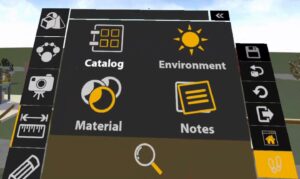
Detailed description of the individual functions in the application you can find on the SIMLAB program website: https://simlab-soft.com/help/books/simlab-vr-viewer-for-clients/page/vr-menu
- Adding Objects and Detecting their Collisions
Adding elements to the VR environment is performed using the built-in tool – Catalog. After entering the Menu, the user selects the Catalog option from the interface. A library of available 3D assets is displayed, from which a chosen element can be selected and placed into the scene. The object can then be positioned, rotated, and scaled using transformation tools to fit the industrial environment. Once placed, the element becomes part of the VR scene and can be further adjusted or removed if necessary. The system also supports collision detection, allowing users to identify when newly added elements intersect or interfere with existing installation components, which helps ensure correct spatial layout and design validation.
- Environmental Conditions and Lighting Control
SIMLAB VR offers a set of advanced environmental and visualization features that allow users to experience industrial installations under highly realistic and configurable conditions. One of the key elements is night mode, which simulates low-light or fully dark environments. This helps users understand how installations function under limited visibility and improves spatial awareness in conditions similar to real industrial night operations.
The system also includes fog effects, which reduce visibility at different intensities. This feature is particularly useful for simulating challenging working conditions, such as steam-filled or dust-affected environments, where objects may be partially obscured. It supports training in identification and navigation when visual information is limited.
In addition, dynamic lighting control allows users to adjust illumination intensity, direction, and placement of light sources within the scene. This makes it possible to highlight specific installation areas, analyze shadowing effects, and better understand how equipment is arranged in space under different lighting setups.
Together, these visualization tools significantly enhance realism, improve spatial understanding, and support more effective analysis of industrial environments in VR.
- Materials Editor
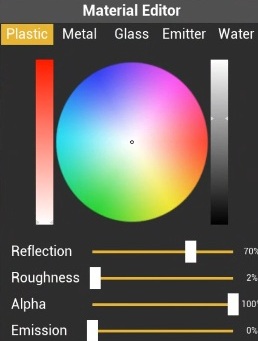
After accessing the material panel, select an object in the scene to display its material, after which, you will be able to modify it. Each material type available (Plastic, Metal, Glass, Emitter and Water) will have different attributes that you can modify to alter the appearance of the object. From the Captured Materials panel, you can store materials that are used by objects in the scene as a palette and then apply the stored materials to other objects in the VR Experience.
- Measurement Tool
In SimLab VR Viewer distance measurement is performed using the built-in measurement tools available in the application interface.
After launching the scene, the user activates the Measurement Mode from the Menu. Then, the first measurement point is selected on a chosen object within the installation, followed by a second point between which the distance is to be measured. The system automatically displays the result directly in the VR space, usually as a line with a numeric value.
To remove a measurement, the user selects the displayed measurement element and deletes it using the delete/remove option available in the interface (or the assigned controller action, depending on the configuration). This clears the measurement from the scene.
- Draw/Markup Tool
In SIMLAB VR, the drawing function allows users to annotate and mark elements directly within the virtual environment.
After activating the Draw/Markup tool, the user can draw lines, shapes, or freehand annotations in 3D space or directly on selected surfaces of the installation. This enables highlighting important components, indicating potential design issues, or marking areas for improvement.
The created drawings are visible within the VR scene and can be edited or removed as needed, supporting communication, analysis, and collaborative review of industrial models.
- Moving / Teleportation
In SimLab VR Viewer, moving around in VR mode relies primarily on teleportation or physical room-scale walking. Teleportation prevents motion sickness and helps navigate large spaces, while physical movement is ideal for inspecting small details within your play area. The teleportation function allows users to move quickly and comfortably within the virtual industrial environment without continuous walking or manual navigation.
You are going to be using the Controllers to navigate and interact with objects.
Look around: Move your head physically to look around you in VR or move the joystick or the track pad left and right.
Movement: Physically moving around will move you in VR or move the joystick.
Teleporting: Hold the joystick or the trackpad on your controller then aim towards a location on the ground then release to teleport there.
Teleportation Points: By activating the teleport tool, the user points to a selected location in the scene and confirms the action. The system then instantly relocates the user’s viewpoint to the chosen position. This method enables fast movement across large industrial installations while maintaining spatial orientation.
It is controlled either via standard controller gestures in VR. Users can also use predefined Teleportation Points to navigate large scenes quickly by activating the X-ray view. This makes it easier to move efficiently between key areas of complex industrial environments.
- Ladder Climbing
Ladder climbing is supported as part of interactive navigation within industrial environments.
The user approaches a ladder and initiates the climbing action using the assigned interaction button or gesture, depending on the system configuration. The avatar then automatically aligns with the ladder and transitions into a climbing mode, allowing smooth upward or downward movement.
The system ensures realistic movement constraints and collision handling during climbing, helping users safely navigate vertical structures and access elevated areas of the virtual installation.
To climb a ladder in SimLab VR, you physically grasp the ladder’s rungs with your controller and pull your body up or down. The feature allows for intuitive, realistic hand-over-hand climbing within your virtual scene.
- Hand gestures tutorial for SimLab VR Viewer
In this tutorial, you will learn how to use Hand Gestures in your VR experience, so instead of using controllers you will be able to run the VR experience directly with hands. Currently this is supported on stand alone Oculus Quest, to enter the hand gesture mode, simply start the VR headset while making the controllers invisible, and start moving your hands to be detected.
Watch the movie with tutorial: